Troubleshoot in a useful order
Identify where the request stopped before changing everything.
A failed result can begin with the source photo, device access, the connection, a temporary service condition, or purchase state. Testing one layer at a time makes the cause easier to isolate and gives support more useful information if the issue continues.
01 · InputConfirm the photo passes the basic checklist
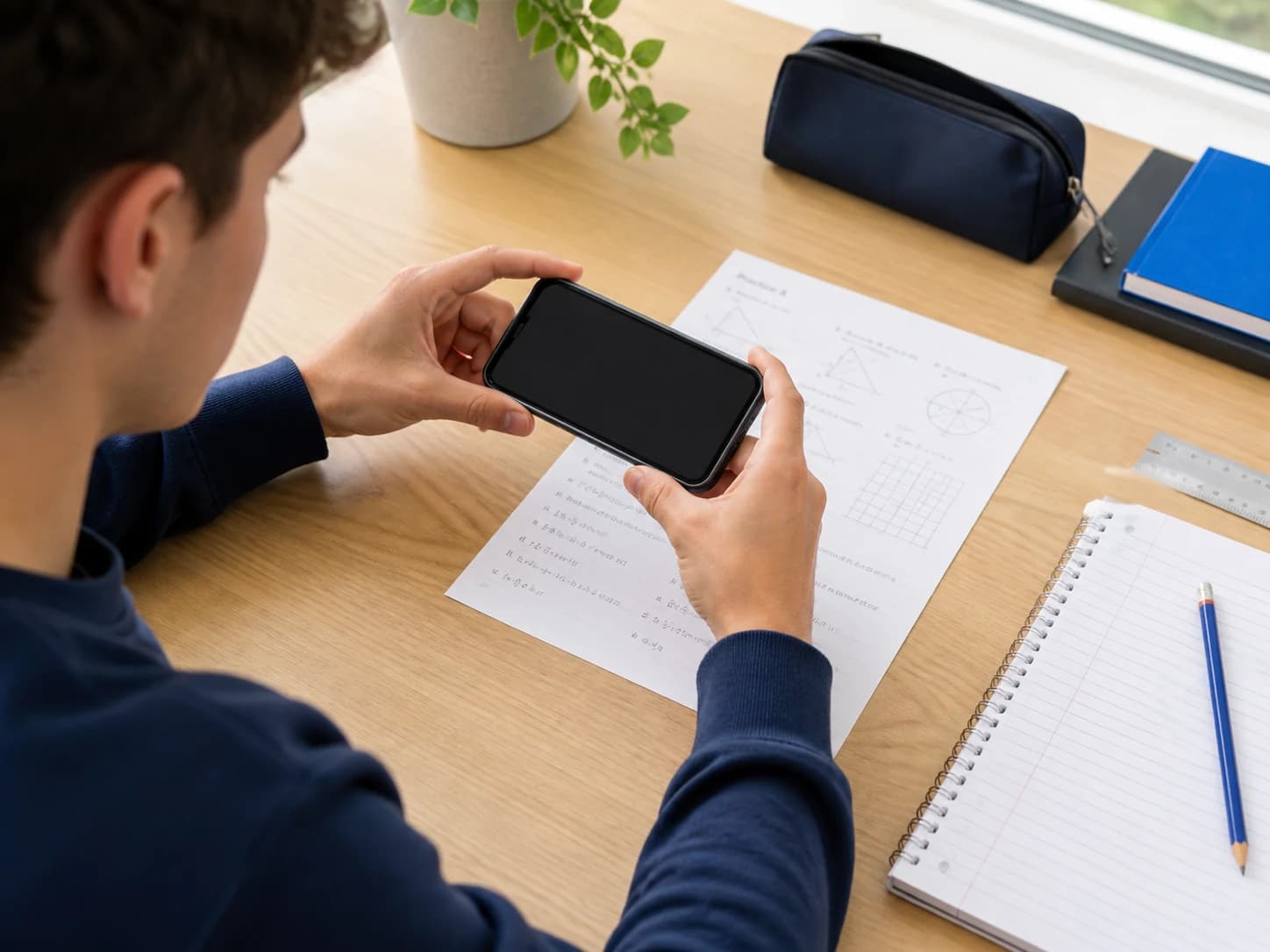
Use a sharp homework photo with the full question, diagrams, and instructions visible. Remove glare, avoid cropping key text, and choose soft neutral light.
If the app rejects one image, capture a new worksheet photo rather than repeatedly cropping or editing the same unsuitable source.
Open the photo checklist →02 · ConnectionCheck whether the request can reach the service
Confirm that the device has a stable internet connection. If the request remains pending, switch once between Wi-Fi and mobile data when available, then reopen Lirno.
Avoid sending the same request repeatedly in quick succession. A temporary service or usage limit may need time before another attempt.
03 · Device accessCheck camera or photo-library access
Open iOS Settings, find Lirno, and confirm the app can access the camera or selected photos needed for the flow you are using.
Tutor messages do not use camera access. They still require a stable connection and available AI usage.
Read how AI requests are initiated →04 · AccountVerify purchase and account context
For Premium access, use the same Apple Account that completed the purchase and try Restore Purchases from the app’s Premium management area.
If an account-specific issue continues, note the sign-in method you used without sending a password, verification code, or payment credential.
Before another attempt
Change one condition, then test once.
A single controlled retry is more informative than changing the photo, connection, permission, and account at the same time. Record which change you made and whether the message or behavior changed.
Review the normal Lirno workflow →